
Share a notice with the right gardeners
Check the audience, content and attachment before the separate publication step.
This guide shows how the association area works. The functions available to you depend on your role and your association’s activation.
What do you need first?
A personal notices administrator with the correct site scope and publication permission for the final step.
Follow these steps
Create notice
Enter the title and text and choose the audience deliberately. A site notice is not a personal inspection report.
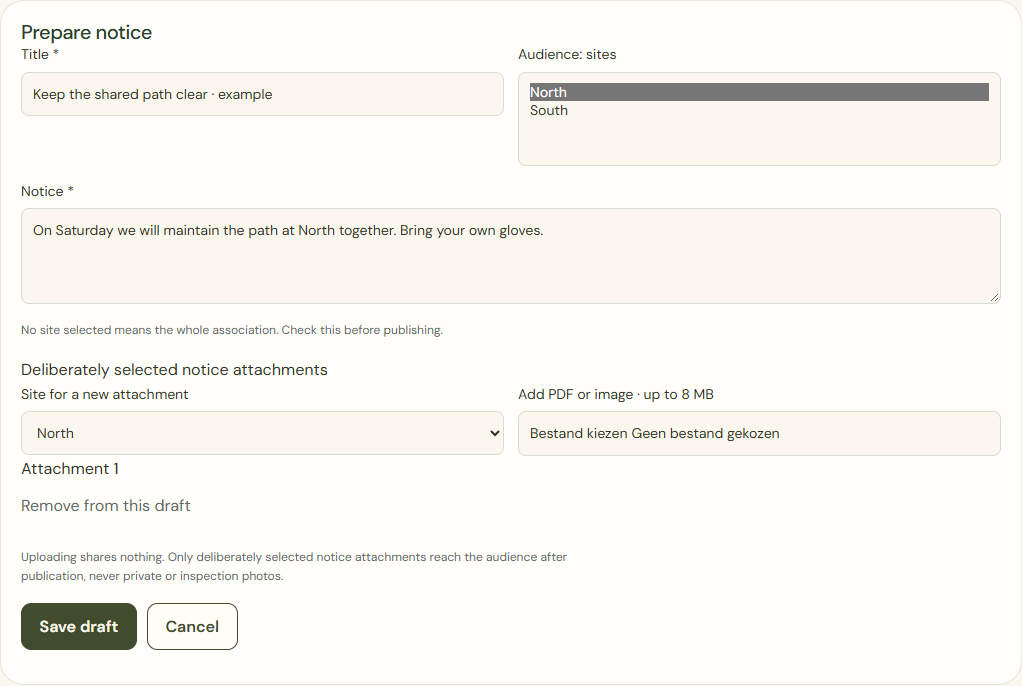
Desktop · Actual notice form with fictional text, a deliberately selected site and a private attachment before saving. 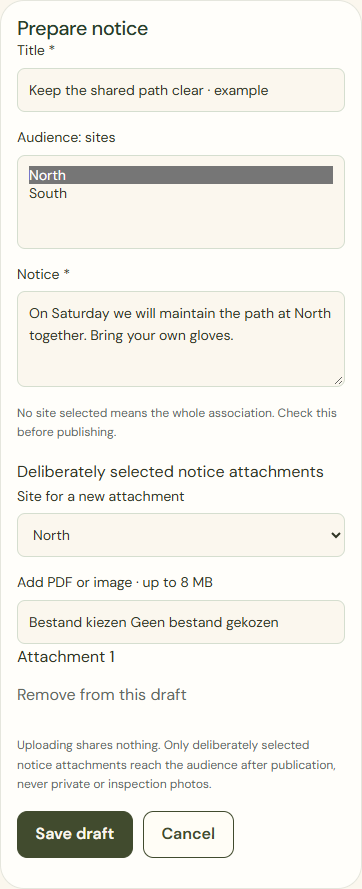
Mobile · Actual notice form with fictional text, a deliberately selected site and a private attachment before saving. Preview for members
Read what the gardener will see and check the attachment. The preview shares nothing. Save draft only saves a draft.
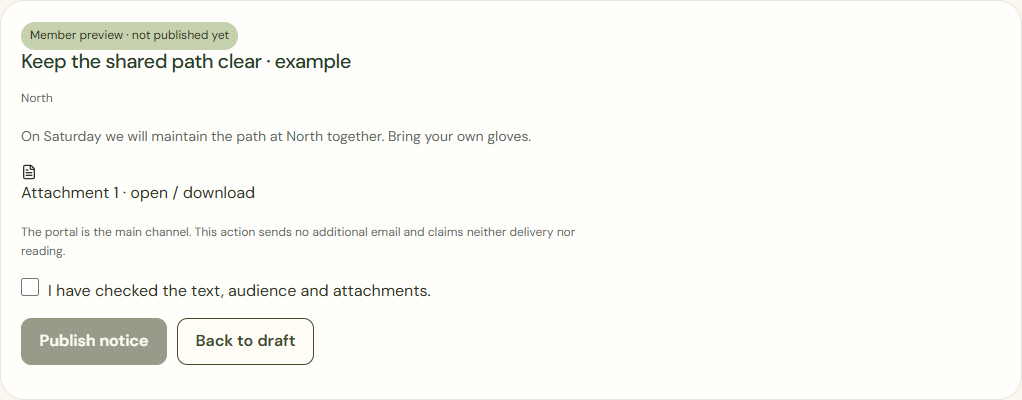
Desktop · Member preview of a fictional site notice before publication confirmation. 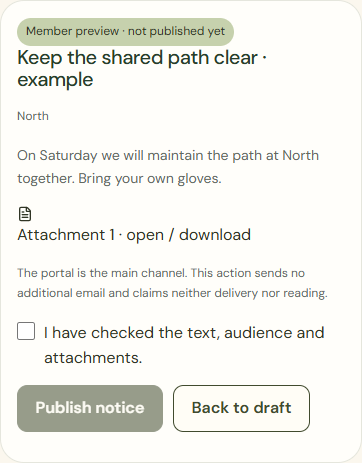
Mobile · Member preview of a fictional site notice before publication confirmation. Publish notice
Check the final version and current audience. Additional email is a separate checked choice, not proof of delivery.
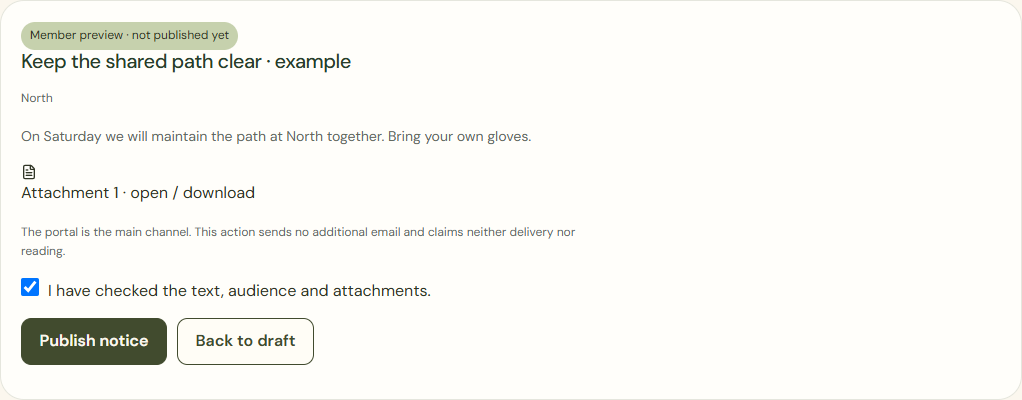
Desktop · Checked text, audience and attachment with explicit confirmation before publication. 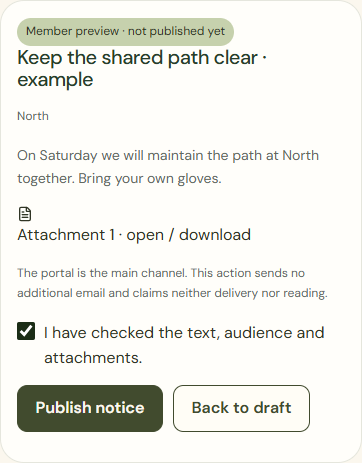
Mobile · Checked text, audience and attachment with explicit confirmation before publication.
What success looks like
The confirmed version is in the portal for the checked audience. Sent does not mean read.
Who can see this?
The attachment is deliberately selected for this audience. Personal reports and internal notes are excluded.
If something goes wrong
Content, audience or permissions changed after preview? Check again. On failure the draft remains identifiable; do not rely on an unconfirmed success message.