Members, households and plots
Keep people, formal memberships, households and dated plot allocations separate. One household can have several members and plots.
 SeedStepsYour vegetable garden, one step at a time.My garden
Organise your association alongside the personal garden planner. One association can manage several sites of its own. You choose how many garden accounts to provide.
Keep people, formal memberships, households and dated plot allocations separate. One household can have several members and plots.
Record each applicant once, with one or more site preferences. Prepare an offer and check the final allocation separately.
Choose a notice’s audience deliberately. Organise activities and count people and households separately, including telephone registrations.
Record visits, agreements and follow-up. Gardeners see only the result and photos deliberately shared with their own household.
From Profile, gardeners open My association: their own plot details, notices, activities and shared inspection results. This portal remains available without an additional personal planner subscription.
Link your existing account to your associationA committee role does not provide access to private crops, harvests, photos or notes. An existing garden stays intact when the account is linked to an association. Committee members use a personal identity; a shared family sign-in receives no committee permissions.
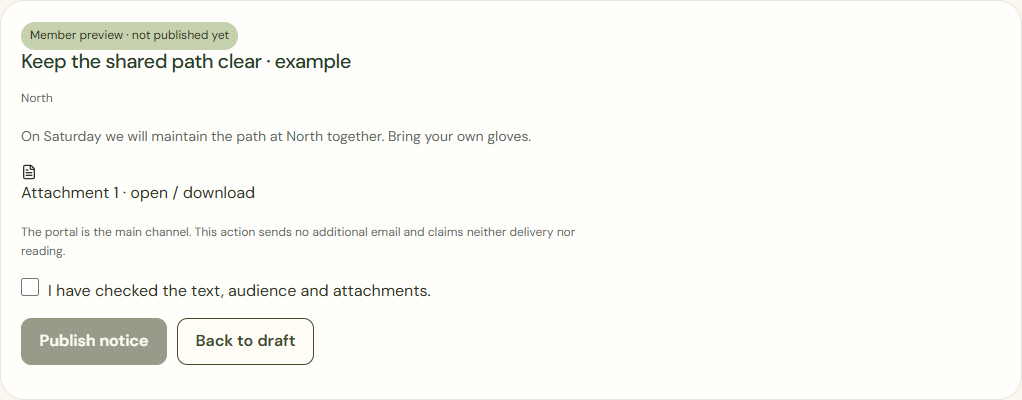
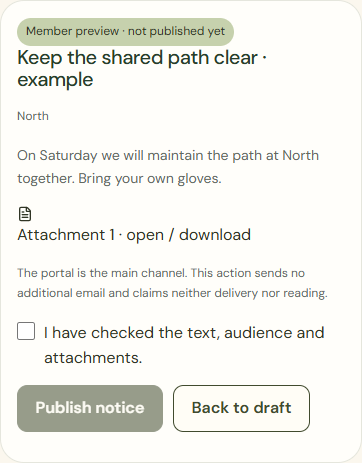
For example, the committee prepares a notice about a shared path. After checking the content, audience and attachment, it shares the selected version. A gardener on that site reads the same notice in My association. A personal inspection report is not sent to everyone.
Set up the association’s own sites and personal permissions. An association name or email domain does not grant access.
Match Excel or CSV columns, check relationships, errors and totals, then activate the checked records after approval.
Decide how many garden accounts the association will provide. A portal invitation and a sponsored planner entitlement are separate choices.
No. Administration covers the whole association; the purchased planner capacity can be smaller. The proposal lowers the average app component as coverage increases. The association’s annual total is shown separately throughout.
Yes. The intended gardener signs in with the existing account and checks the invitation. Private planting information is not transferred to the committee.
A household can share its garden sign-in. Two plots do not automatically require two garden accounts. Committee permissions belong to a separately personal identity.
Yes. Its own sites share one contract scope and capacity. Independent associations each have a separate subscription.
Records can include members without a sign-in. An authorised administrator can record a telephone registration or print a checked notice.