
Link your existing account to your association
Use the sign-in that holds your garden and check the intended household relationship.
This guide shows how the association area works. The functions available to you depend on your role and your association’s activation.
What do you need first?
A valid committee invitation and access to your existing account. A portal invitation does not require a free planner place.
Follow these steps
Sign in
Open the invitation and sign in with your existing garden account. Do not create another account if your garden is already saved.
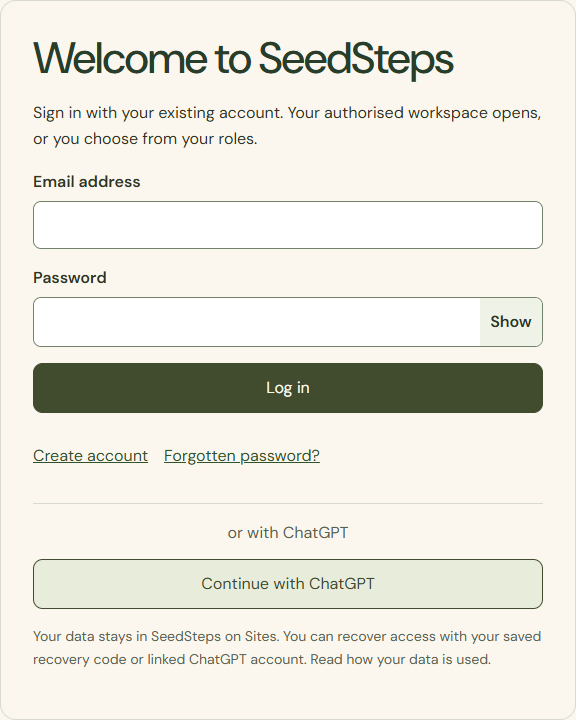
Desktop · Existing sign-in page before entering a fictional garden account. 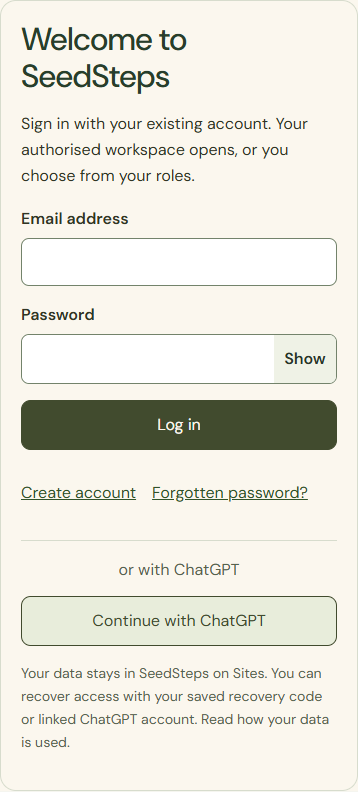
Mobile · Existing sign-in page before entering a fictional garden account. Check your invitation
Check the association, intended household, plots and whether the invitation includes portal access only or a planner entitlement too.
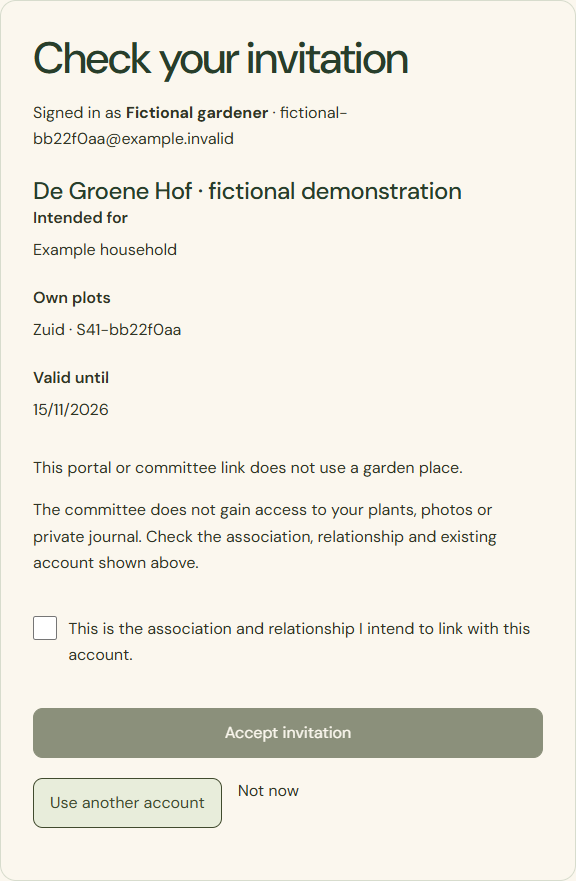
Desktop · Invitation showing a fictional association, household and plot before acceptance. 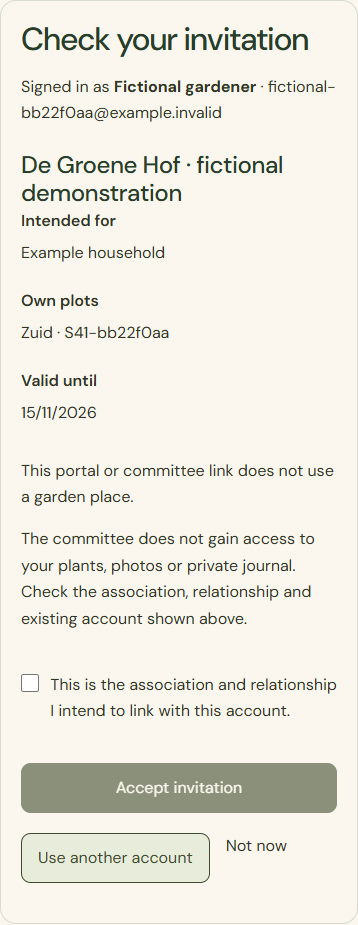
Mobile · Invitation showing a fictional association, household and plot before acceptance. Accept invitation
Confirm only when the relationship is correct. Your private plan, photos and notes are not transferred. Not now leaves the invitation unanswered.
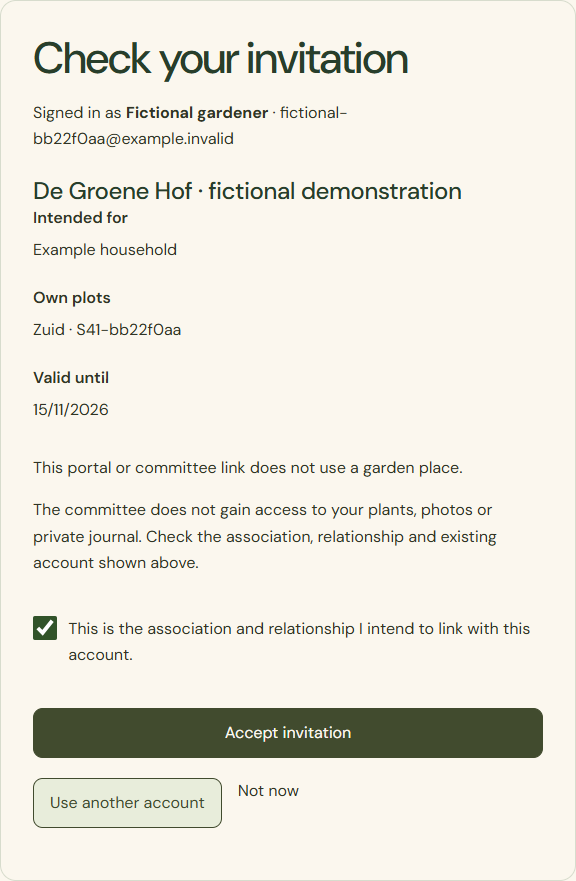
Desktop · Checked fictional invitation with the relationship confirmation ticked and the acceptance button. 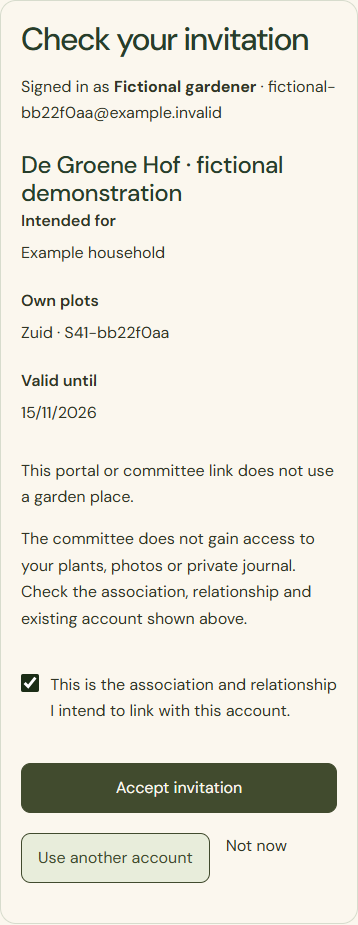
Mobile · Checked fictional invitation with the relationship confirmation ticked and the acceptance button. Association name
After confirmed processing, click the association name shown. You can also find My association through Profile later. Your existing garden stays where it was.
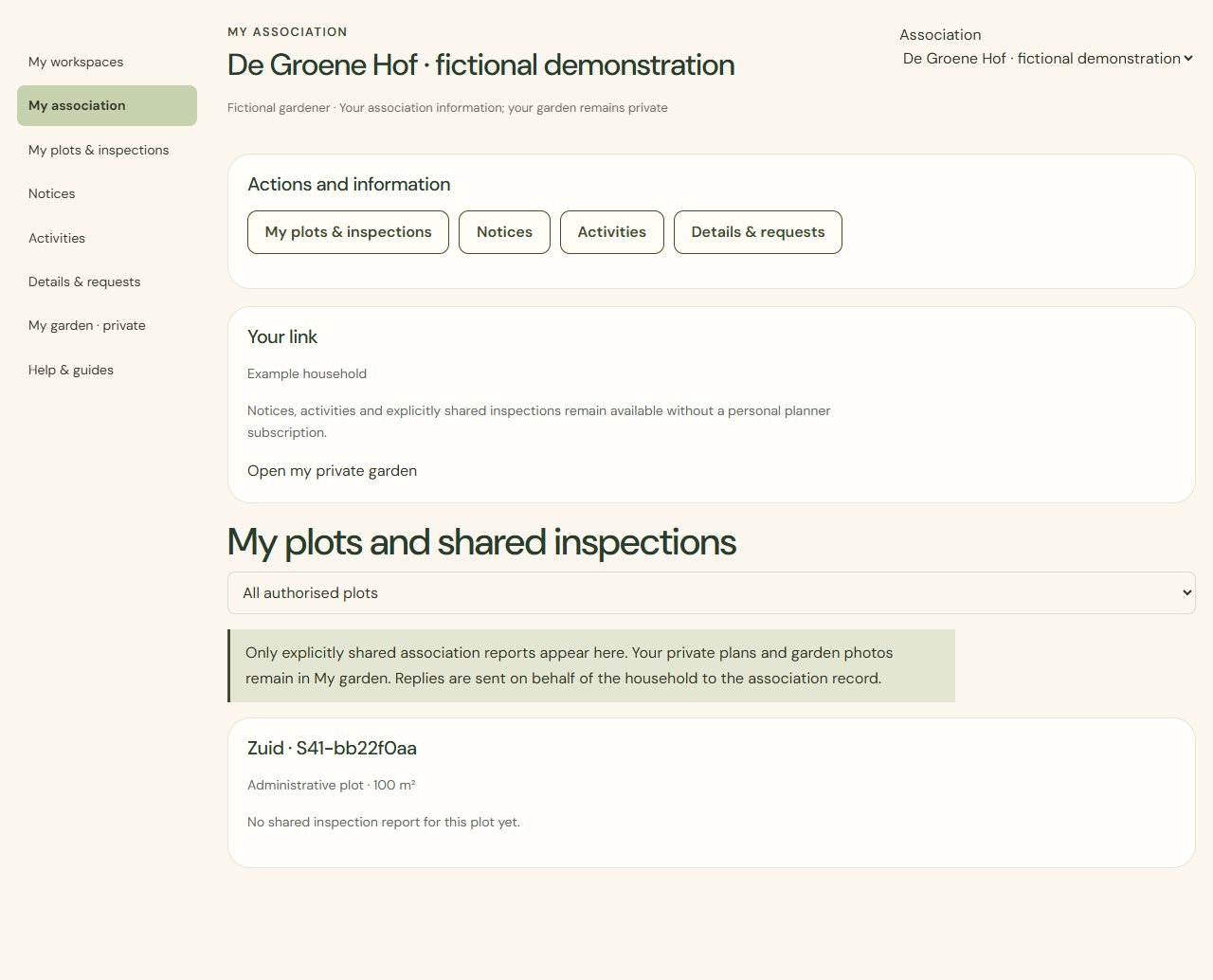
Desktop · Fully loaded household association portal after a tested link preserving the private garden. 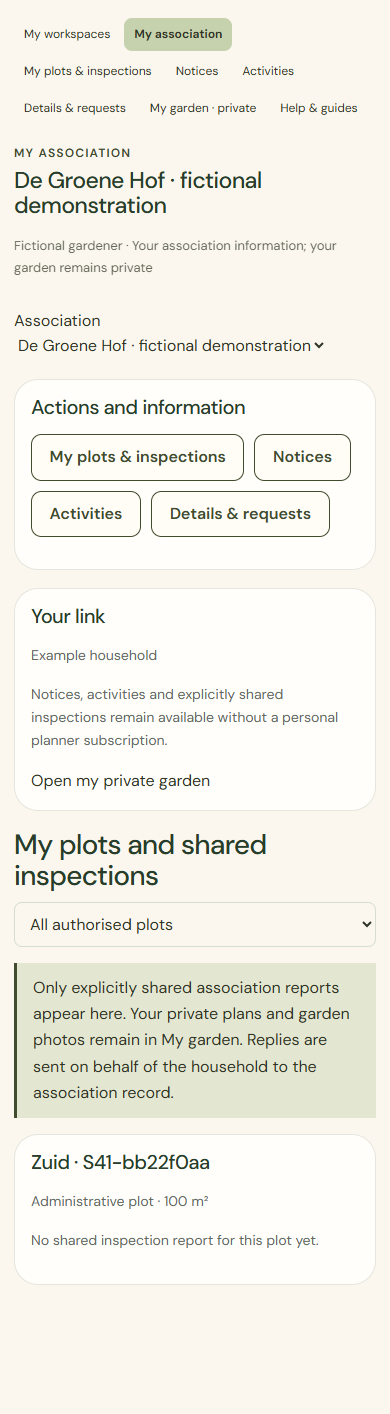
Mobile · Fully loaded household association portal after a tested link preserving the private garden.
What success looks like
Your association portal is linked. Acceptance does not purchase capacity or create a second garden.
Who can see this?
The committee cannot see private crops, harvests, notes or photos. The portal shows only your permitted association information.
If something goes wrong
Wrong household, expired invitation or a different account? Do not accept. Ask your committee to correct the intended relationship and invitation.