
Bring your membership list from Excel
Review records, relationships and totals first. Activate the records only after the final check.
This guide shows how the association area works. The functions available to you depend on your role and your association’s activation.
What do you need first?
An authorised membership administrator and an Excel or CSV file. Keep source files and never use real personal data in a public demonstration.
Follow these steps
Import
Choose the file, sheet and header row. Use the template to identify people, memberships, households, plots and preferences clearly.
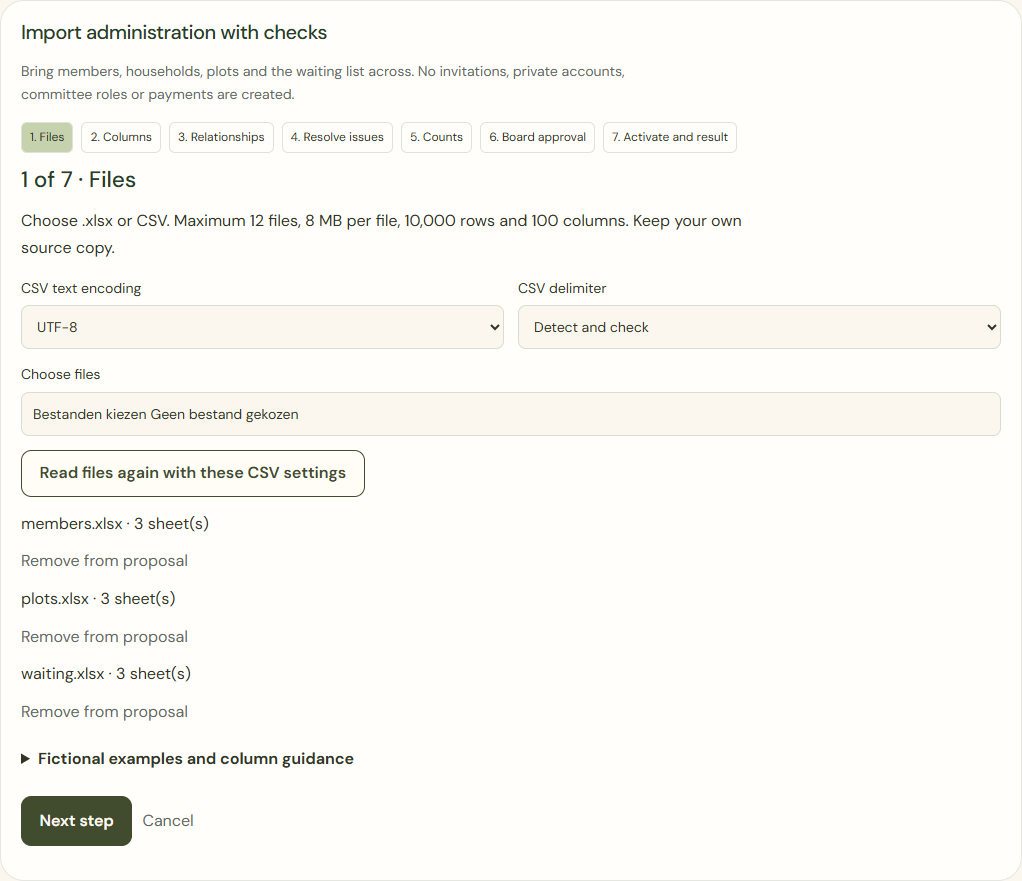
Desktop · Actual import wizard with three fictional Excel sources before column selection. 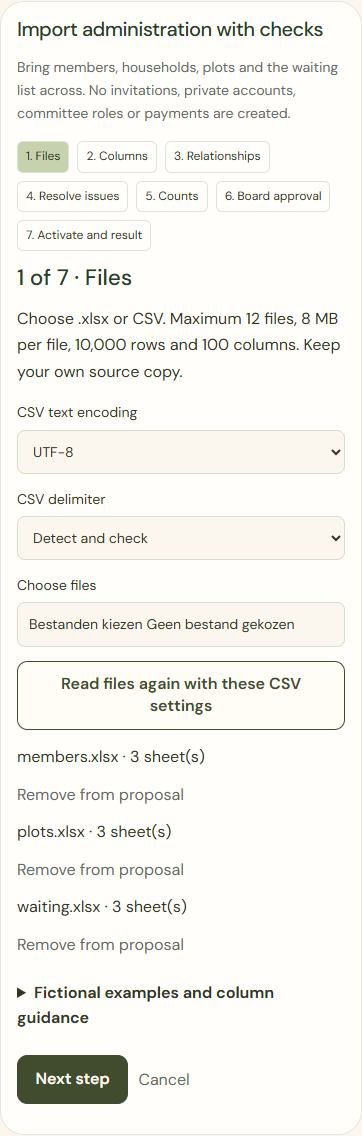
Mobile · Actual import wizard with three fictional Excel sources before column selection. Next step
Match columns and relationships. Fix blocking errors; an email or address does not prove two people belong to the same household.
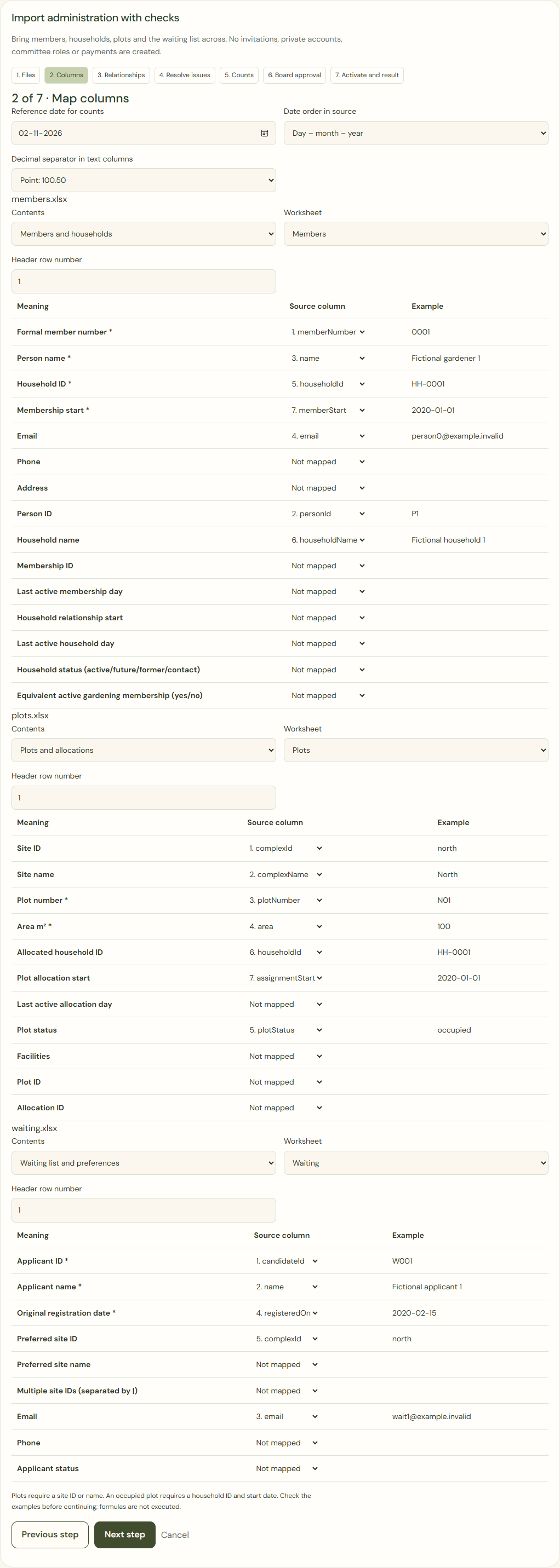
Desktop · Actual mapping of Excel worksheets and source columns to members, plots and the waiting list. 
Mobile · Actual mapping of Excel worksheets and source columns to members, plots and the waiting list. The counts reconcile with our administration.
Compare unique households, formal members, plots and applicants with your source. Then confirm the separate board approval. A changed source or mapping needs another review.
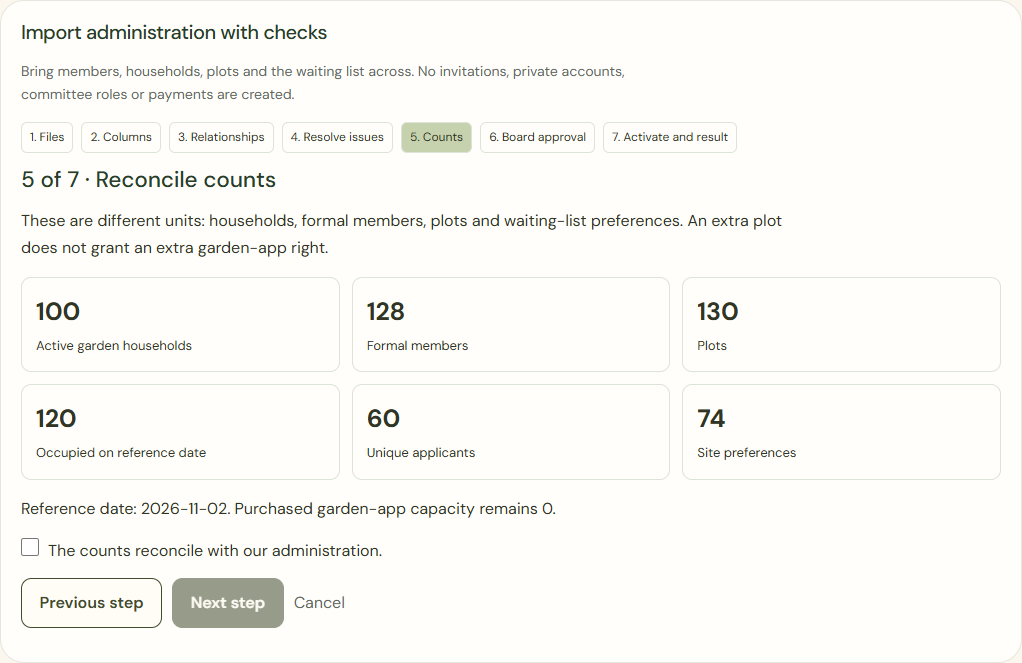
Desktop · Checked counts:100 households,128 formal members,130 plots,120 occupied and60 applicants with74 preferences. 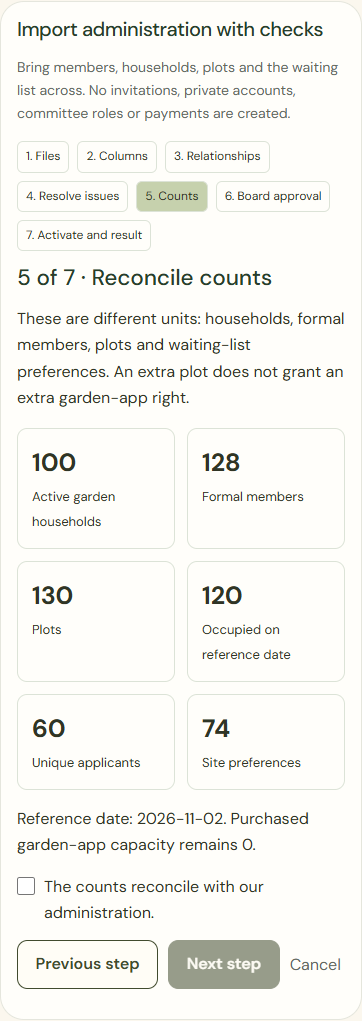
Mobile · Checked counts:100 households,128 formal members,130 plots,120 occupied and60 applicants with74 preferences. Activate import definitively
Read the final check and confirm deliberately. Uploading or ticking a box activates nothing. Check the outcome and any exceptions afterwards.
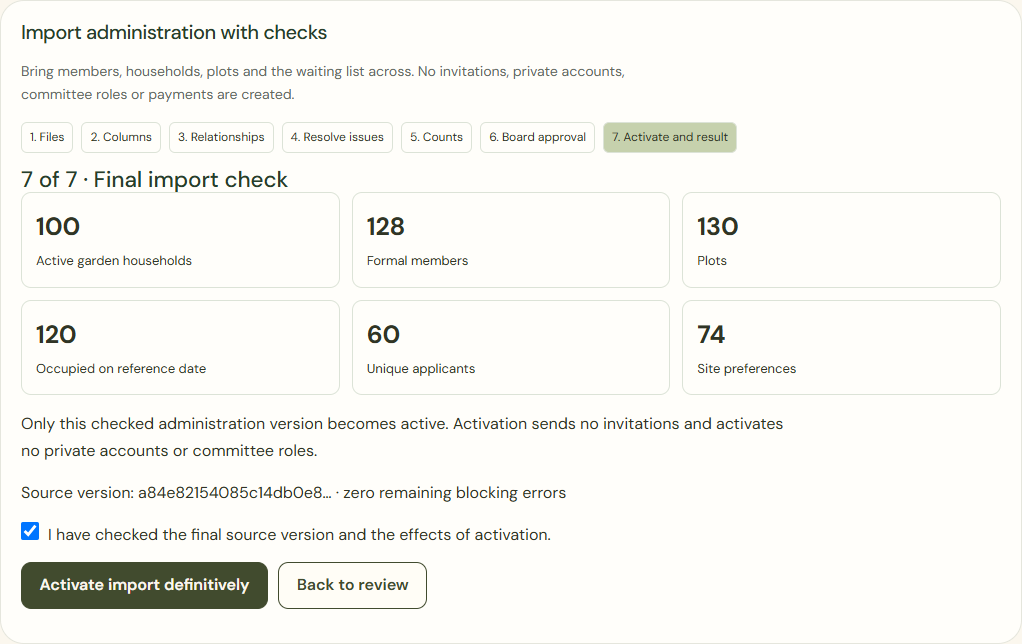
Desktop · Separate final check and explicit confirmation before actual activation. 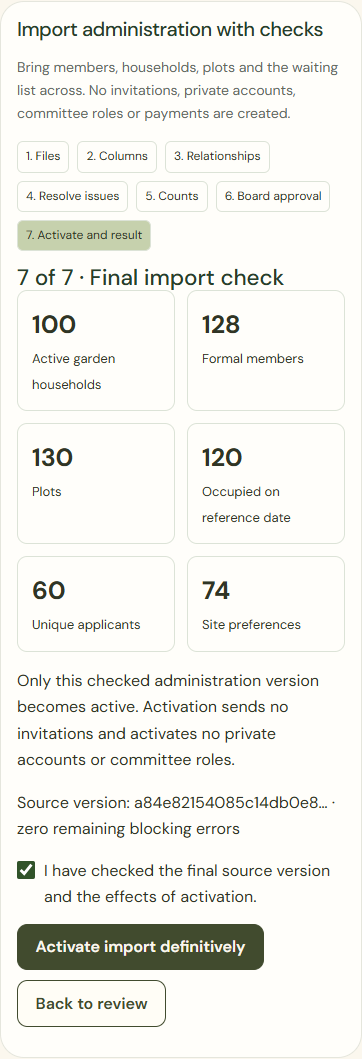
Mobile · Separate final check and explicit confirmation before actual activation.
What success looks like
The checked records have been processed once with an outcome report. No sign-ins, invitations or committee roles were created automatically.
Who can see this?
Only the authorised association and scope receive the records. Private gardens and financial imports are outside this migration.
If something goes wrong
Fix errors at the indicated source row. After a connection failure, check the batch status first. Do not activate again if that batch has already been processed.