
Assign and follow up committee tasks
Find your own actions, update progress and keep a history for handover.
You see only the parts that belong to your role. Your committee arranges access to the association.
What do you need first?
Use your personal committee account. Managing tasks requires Assign and manage committee tasks permission, or general association management permission; assigned committee members can update their own tasks within their site scope.
Follow these steps
Overview · Committee tasks
Overview shows your own open tasks due today or earlier before general history. Committee tasks shows tasks within your access; change the filter to find completed tasks.
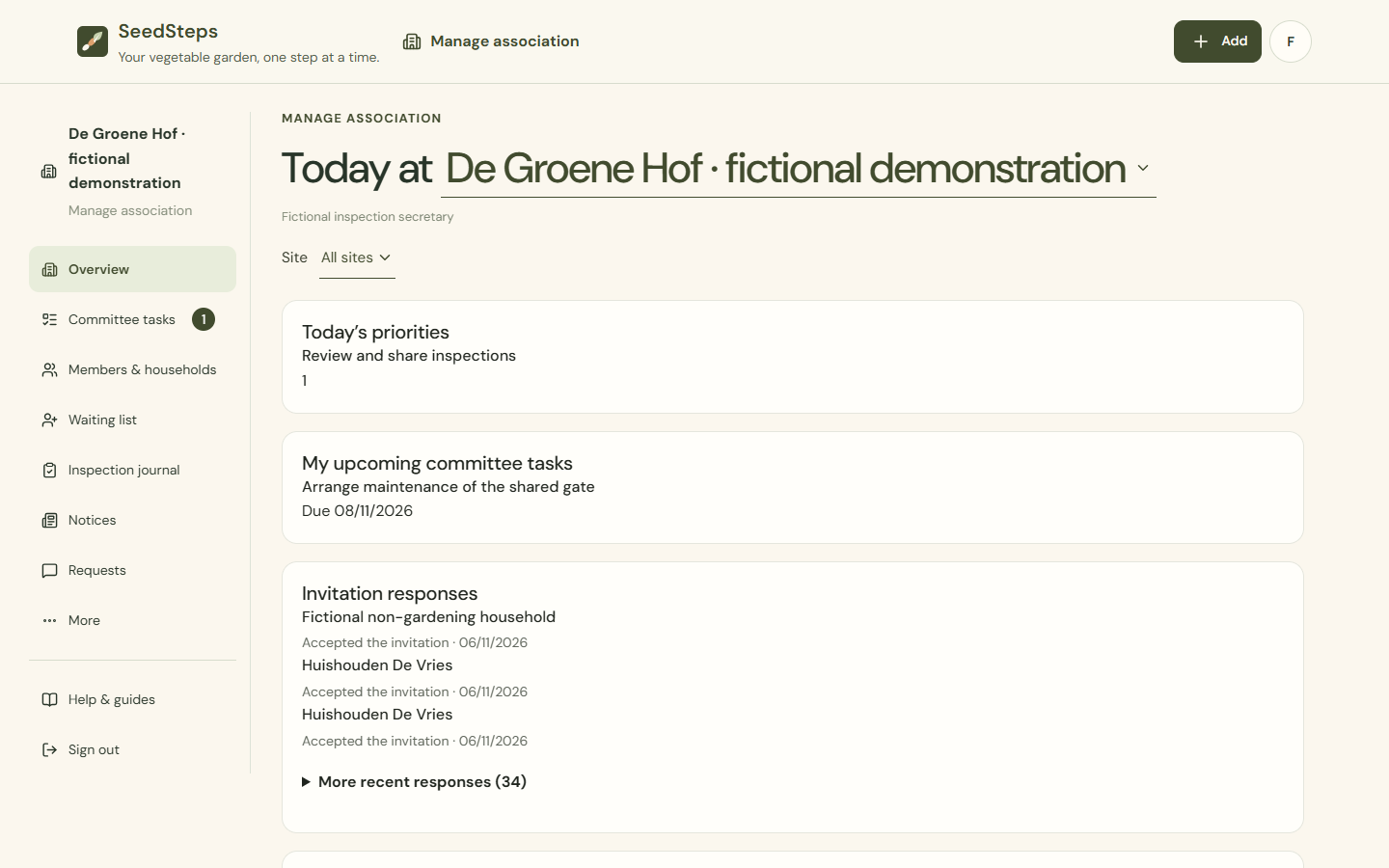
Desktop · Committee overview with an assigned task and navigation to committee tasks. 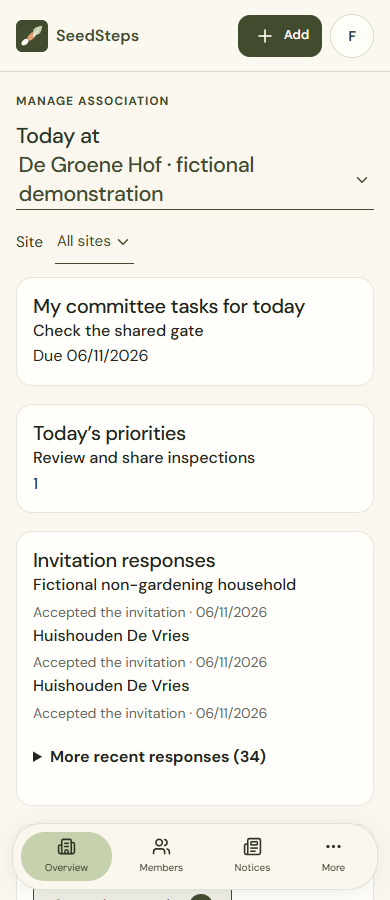
Mobile · Committee overview with an assigned task and navigation to committee tasks. Add task
Choose an active personal committee member, due date and applicable sites. No site selection means the whole association. Assignment does not grant additional committee permissions.
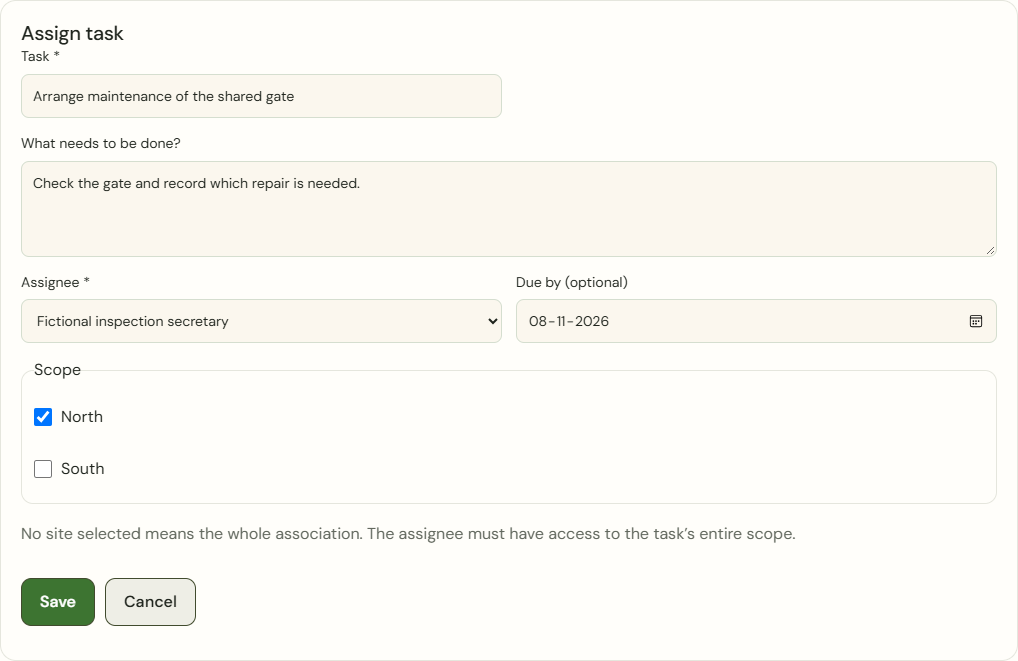
Desktop · Assign a task to an individual committee member with a due date and site scope. 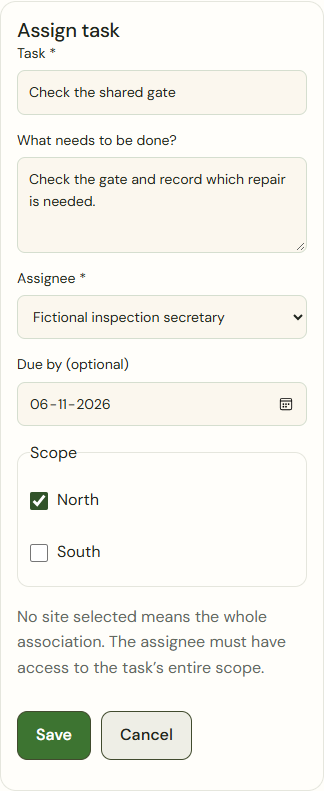
Mobile · Assign a task to an individual committee member with a due date and site scope. Create in-app reminder · Mark reminder as seen
An authorised task manager can create an in-app reminder on an open task for the current personal assignee. Confirm the recipient before creating it. The assignee sees it in Today, including in their personal workspace, and opens the correct committee task directly. Mark reminder as seen clears the notification without completing the task. Unread reminders are not stacked. Access, scope and assignment are checked again each time.
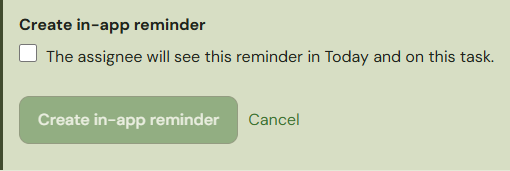
Desktop · Confirmation for a targeted in-app reminder on a fictional committee task. 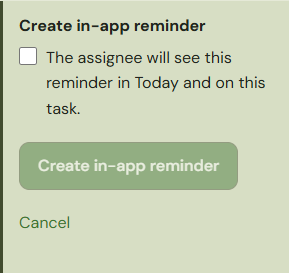
Mobile · Confirmation for a targeted in-app reminder on a fictional committee task. Update progress
Open your task, record progress and update the status. History records who made the change. A committee task does not become a private growing task in the garden planner.
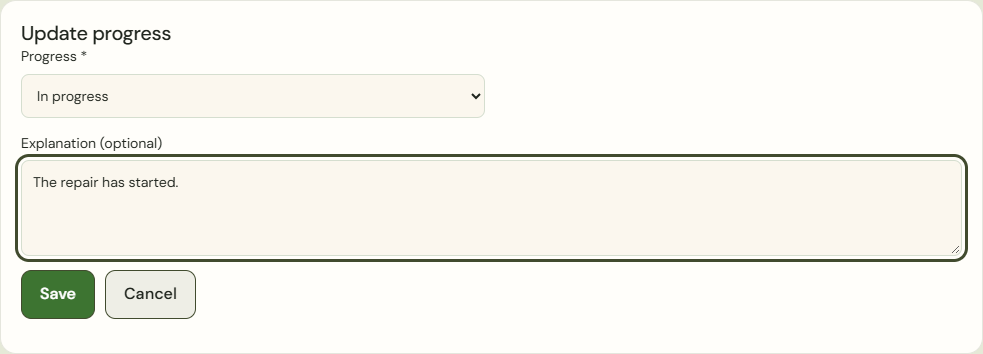
Desktop · Update the progress of an assigned committee task with an explanation. 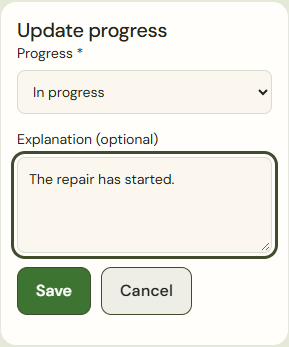
Mobile · Update the progress of an assigned committee task with an explanation.
What success looks like
The task has an identifiable assignee, status, due date and history.
Who can see this?
An assigned committee member sees their own permitted task; assignment does not reveal earlier notes from another site scope.
If something goes wrong
If saving is uncertain, the fields remain locked. Use Check previous action before changing anything. Retrying checks the same operation and does not create a second task.