
Add members and manage households and plots
Add a member easily, even without an email address. Arrange access separately afterwards and keep people, households and plots distinct.
You see only the parts that belong to your role. Your committee arranges access to the association.
What do you need first?
You have permission to manage members across the association. Have the correct name, membership number and start date ready. Allocating a plot also requires the relevant permission.
Follow these steps
Add → Member
Click Add at the top, then Member, or use Add member under Members & households. Enter the name, membership number and start date. Email and phone are optional. Choose New household or deliberately select an existing household; matching names are never merged automatically. You can allocate an available plot straight away if you have permission.
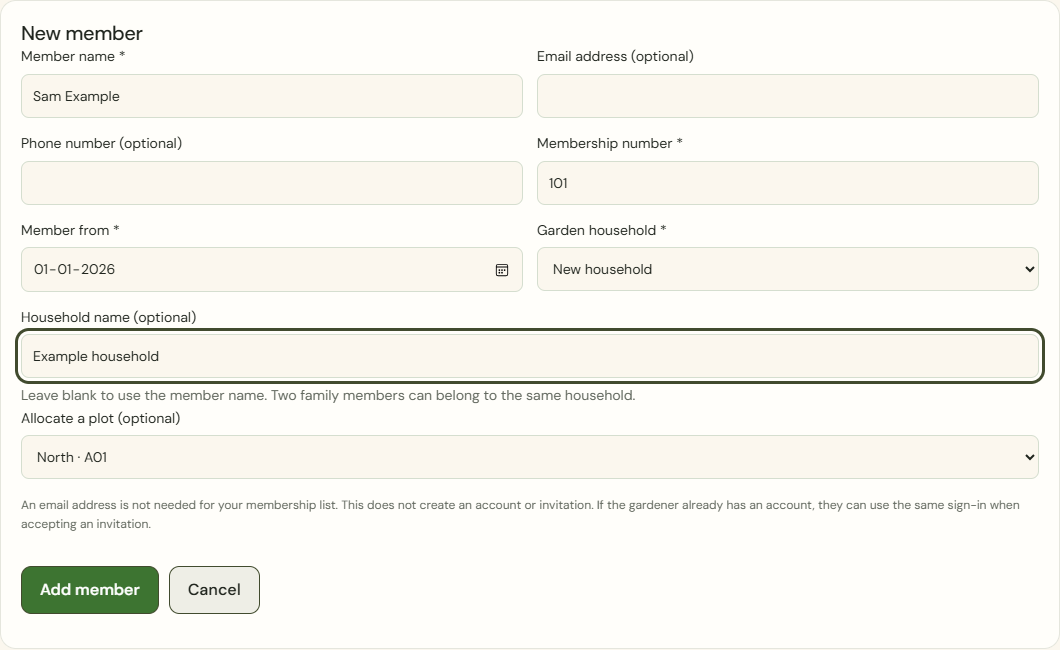
Desktop · New member with name, membership number and start date; email is blank and the new household is allocated plot A01. 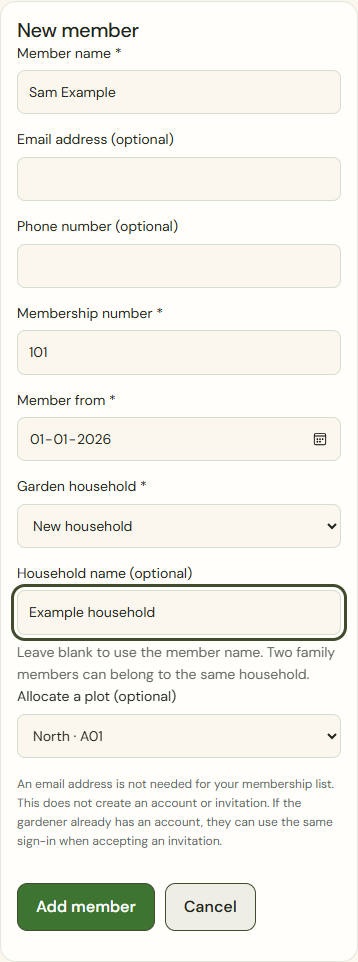
Mobile · New member with name, membership number and start date; email is blank and the new household is allocated plot A01. Add member · then Invite if needed
Save the member. The person, membership, any new household and chosen plot allocation are added together. The list shows names and membership numbers. No sign-in is created and no invitation is sent. Choose Invite to My association afterwards if access is needed. A gardener with an existing account accepts using their normal sign-in.
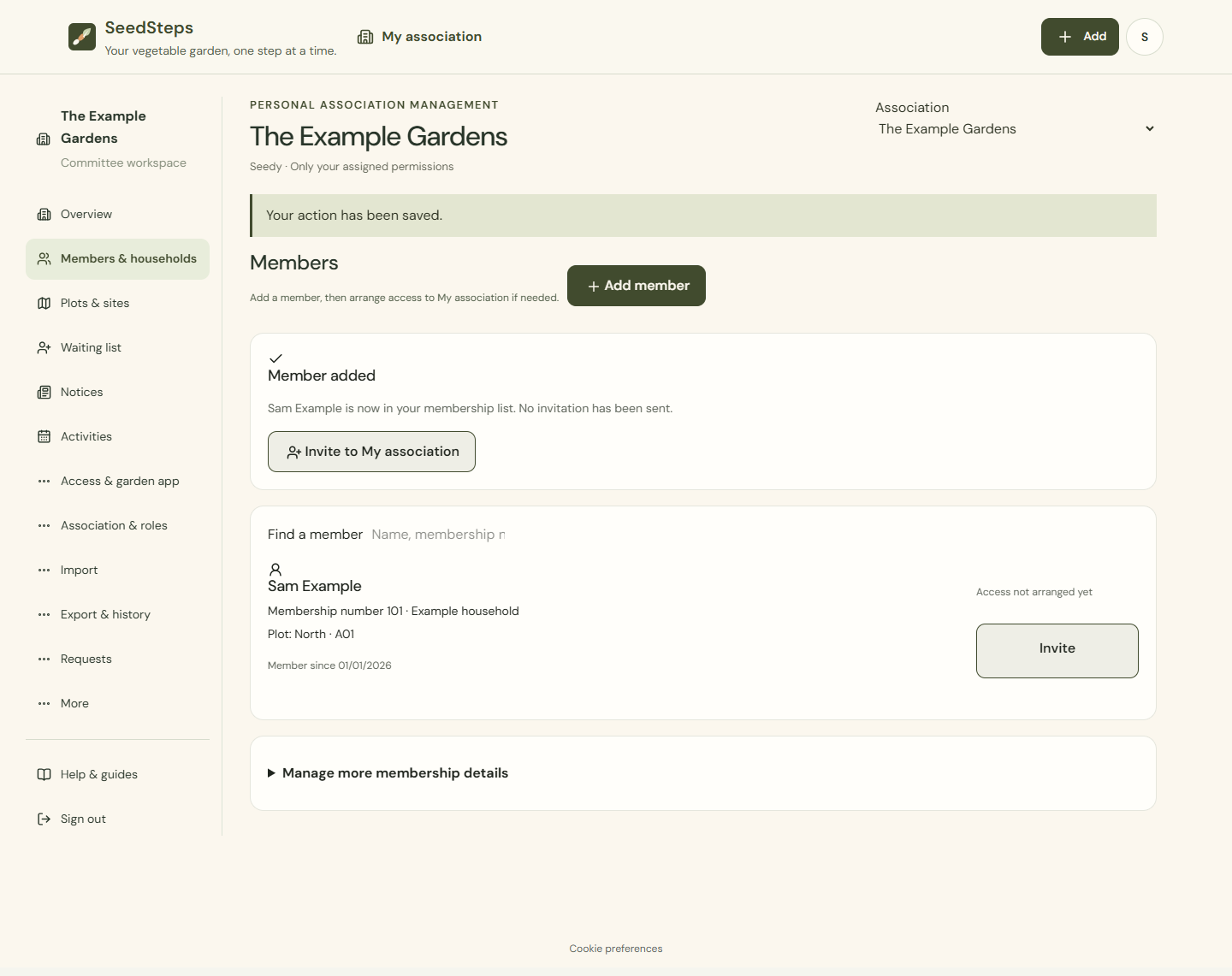
Desktop · The member has been added to the named list; Invite to My association is a separate next step. 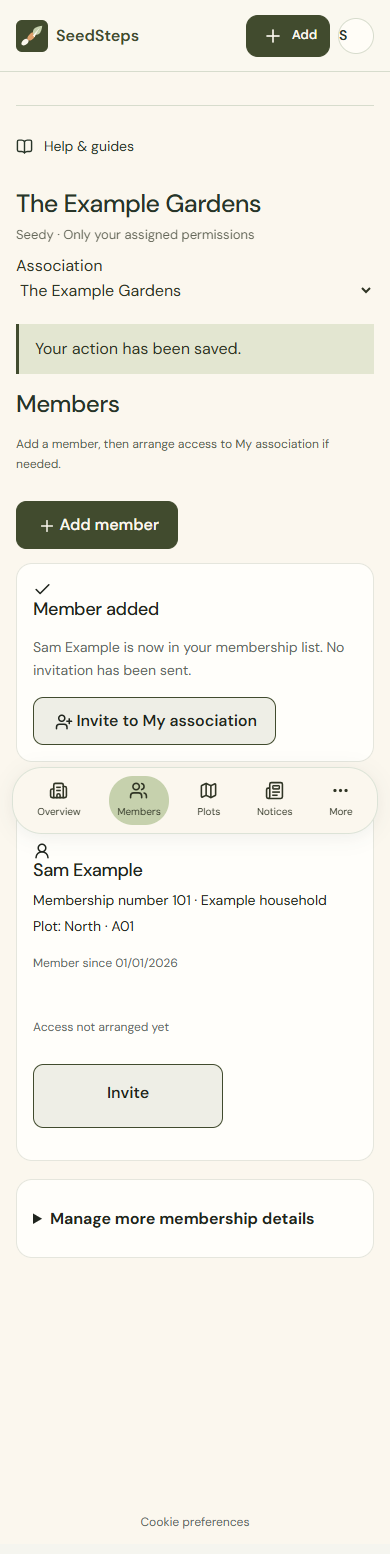
Mobile · The member has been added to the named list; Invite to My association is a separate next step. Manage more membership details · Plots & sites
For a correction, open Manage more membership details in the members section. People, households and memberships can be edited separately, with their own dates. Under Plots & sites, edit the allocation to a household: check the site, plot, start and any end date. Two plots for one household do not create a second planner account. The same plot number on another site identifies a different plot.
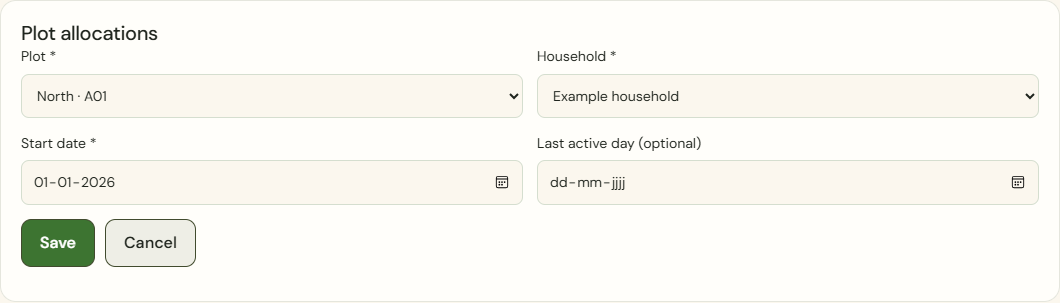
Desktop · Existing allocation showing plot A01, its household and separate start and end date fields. 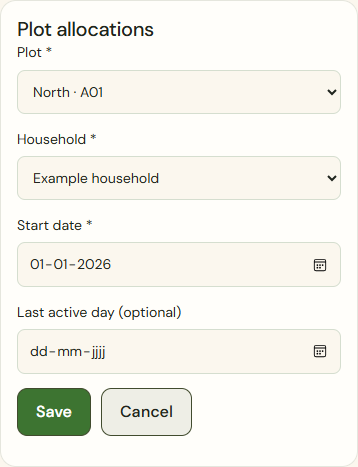
Mobile · Existing allocation showing plot A01, its household and separate start and end date fields.
What success looks like
You can explain the records without mixing people, plots and capacity.
Who can see this?
Association relationships do not open a private garden. History does not automatically reveal a former holder’s personal information to a successor.
If something goes wrong
Is the membership number already in use? Check the existing member or enter the correct unused number. If saving fails, your input stays in the form and no partial member is added. Investigate unclear duplicates; do not merge using only a name, address or email.